DNASTAR_Win_Install
Installing DNASTAR v.17.x on PC
Double click on the installer to start program extraction. It will take a minute or two since this is a large file.
NOTE: If you are using Windows 10 Enterprise and have April 2018 update installed you will likely see this window pop-up when you try to run DNASTAR installer with only option as “Don’t run”.

If this happens you need to do the following:
“right click on the downloaded exe “ –> “Properties” –> Under “General” tab –> check “Unblock” box.
Doing above should allow the install to proceed. If you encounter any issues let me know.
You will eventually reach a screen where you could change the install location (if you wanted to).

Installation may take up to 5 minutes depending on speed of your computer/disk.
Find the DNASTAR navigator program (“Windows key”–> DNASTAR) if the program does not start automatically. First time you run DNASTAR a license authorization dialog should be displayed. Make sure “network” option is selected. DNASTAR license server is hosted on “seqsoft.unc.edu”. You may need to allow DNASTAR to connect to license server depending through local firewall.
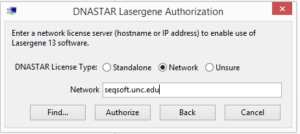
Click on “Authorize”. If your computer is successful in contacting the license server then you will see a dialog indicating success.
You are now ready to use DNASTAR.

Documentation/Tutorials/Webinars/Videos are available in DNASTAR Navigator (hover over one of the program icons) and also on their website (http://www.dnastar.com/ à click on the Support link).
IMPORTANT POINTS:
- A continuous network connection will be required to use DNASTAR.
- Off-campus access requires UNC-VPN
- UNC has ten (10) network licenses for DNASTAR. It is extremely important that you close all DNASTAR windows when you are not ACTIVELY using it.
NOTE: If you previously had DNASTAR installed on your machine then the older versions are not automatically uninstalled after you install v.17.x. Once you are sure that v.17.x has all your data and it is working as expected you can manually uninstall older versions of DNASTAR using “windows control panel/uninstall a program”.