How To Add an Image
Images can enhance your content and help convey information visually. This page explains how to add, align, and resize images, as well as ensure they meet required accessibility standards. While the examples focus on adding images to pages, the same process applies to other content types such as news posts, events, and directory profiles.
In WordPress, all images are stored in the Media Library. You can upload images directly to the Media Library or add them while editing a page, post, or event. Either method automatically saves the image to the Media Library, allowing it to be reused anywhere on your site. For instructions on deleting, or bulk uploading images, see the How to Add Media Files documentation.
Covered In This Tutorial
- Best Practices
- How to Add an Image
- Resizing an Image After It’s Placed on the Page
- Alt Text
- Linked Images
- Alt Text Improvement Example
- When Images Don’t Need Alt Text
- Images With Text
- Complex Images
- Using AI to Generate Alt Text
- Image Search Engine Optimization
- Training Videos
- Resources
Best Practices
- Supported image file types include .jpg, .gif and .png.
- Crop and resize images before uploading them to minimize file size. Smaller files make pages load more quickly and improve search engine optimization (SEO).
- Image sizing:
- Images in full-width sections: 2,000 – 3,000 pixels wide and under 800 KB.
- Images in the body content area: under 900 pixels wide and 300 KB or less.
- Rename images before uploading. Use clear, descriptive file names (e.g., anatomy-lab-2025.jpg instead of IMG_1234.jpg) to improve SEO.
- Include alt text. All meaningful images (almost all images) must have alternative text that describes the image’s purpose or content.
- Re-use existing images from the Media Library whenever possible instead of uploading duplicates.
- Avoid images that contain text, since screen readers and search engines can’t interpret text embedded in graphics.
- When linking images, make sure the link destination is clearly described in the alt text.
How to Add an Image
- Place your cursor where you want the image to appear.
- In the editor toolbar, click the Add Media button.

- The Insert Media window will open. From here, you have two options:
- Option 1: Select an Existing Image (already in the Media Library).
 Click the Media Library tab at the top of the window (if not already selected).
- Browse or use the search bar to find the desired image.
- Click the image thumbnail to select it.
- Option 2: Upload a New Image
- Click the Upload Files tab.
- Drag and drop your image into the upload area, or click Select Files to browse your computer.
- Once uploaded, the image will automatically appear selected in the Media Library.
- Option 1: Select an Existing Image (already in the Media Library).
- With the image selected, review the Attachment Details panel on the right and complete the following fields as needed:
- Alt Text – Describes the image’s content and purpose. This is almost always required.
- Caption – Optional text that displays below the image.
- Alignment – Choose how the image aligns with surrounding text (None, Left, Center, or Right).
- Link To – Choose whether or not the image links to something. Additional alt text must be provided that explains the link destination.
- Size – Chose from predefined sizes. We recommend leaving this at Full Size and resizing it after it’s placed on the page (see Resizing an Image below).
- Click Insert into Page.

Resizing an Image After It’s Placed on the Page
Once an image has been added to a page, it can be resized to any custom dimensions, not just the predefined sizes. This feature is only available after the image has been added to the page, not during initial insertion.
- Click on the image to select it.
 Click the Edit (pencil) icon that appears when the image is selected.
- In the Image Details popup, set the Size field to Custom Size.
- Enter the desired width or height. The system will automatically adjust the other dimension to maintain image proportions.
- Click Update to apply changes.
Alt Text
Alt text (alternative text) describes the context and purpose of an image for people who cannot see it. It is required for all meaningful images.
When images can’t be displayed, such as when users disable images or have a slow internet connection, the alt text appears in their place. Including accurate, descriptive alt text ensures that everyone, regardless of visual ability, can still understand your content.
Alt text also helps search engines understand what an image represents, improving both accessibility and SEO.
Meaningful vs. Decorative Images
Meaningful images convey information, illustrate a concept, or support nearby text. These images always need alt text.
- Example Image: A photo of medical students in a lab that supports a story about hands-on learning.
- Example Alt Text: Students practicing clinical skills during a UNC School of Medicine lab session.
Decorative images are purely visual, adding aesthetic appeal but no new information. These do not need alt text.
- Example: A decorative divider graphic or a background texture that doesn’t contribute meaning.
Guidelines
- Alt text should convey the context and function of the image. This is explained in further detail below.
- Be concise. Keep it under 150 characters when possible, without sacrificing the meaning or intent of the image.
- Don’t include “Image of” or “Photo of.” This is redundant because screen readers will announce it as an image.
- Start alt text with a capitol letter and end with a period; this ensures the screen reader pauses after reading the alt text.
- Linked images must always include alt text that describes the link’s destination.
- Images with text:
- If the image contains a short amount of text, include it in the alt text.
- If the image contains a large amount of text, provide that text in the page content area near the image. The alt text should note that the full text can be found in the content of the page near the image.
- Complex images, like charts, graphs, posters or flyers, should have a summary of the image in the page text surrounding the image. The image’s alt text should direct users to that description.
Context
The meaning of an image depends on its context. Alt text should reflect the image’s purpose on the page and not describe everything visible in the image.
For example, a photo of a doctor examining a patient would need different alt text depending on where it appears:
- On a patient care page: “Physician listening to a patient’s heartbeat during an exam.”
- On a medical education page: “Medical student observing a physician perform a patient exam.”
- On a research page: “UNC researcher [name] conducting a clinical study on heart health.”
Describe only what’s relevant to the page’s content and purpose. Focus on what helps users understand the surrounding information.
Other Examples
| Page Context | Image | Appropriate Alt Text |
|---|---|---|
| Campus overview page | Aerial view of the medical school | “Aerial view of the UNC School of Medicine campus in Chapel Hill.” |
| Research news article | Scientist working with lab equipment | “Dr. Smith prepares tissue samples for cancer research study.” |
| Student recruitment page | Students studying in a lounge | “First-year medical students collaborating in a study area.” |
| Event recap post | Speaker at a podium | “Dean Burks addressing attendees at the 2025 Research Symposium.” |
| Faculty profile page | Portrait of Dr. Garcia | “Dr. Elena Garcia, Associate Professor of Neurology.” |
| Fundraising announcement | Donor and student shaking hands | “Alumni donor Michael Lee congratulates scholarship recipient Jasmine Carter.” |
External Examples
The following websites provide some great alt text examples:
Linked Images
Images can also serve as links. For example, a logo that links to a website’s homepage or to a partner’s website.
- When an image functions as a link, its alt text becomes the link text for screen readers.
- Every linked image must have alt text that explains the link destination.
- Describing the destination is the priority over context, because that’s what screen reader users need to decide whether to follow the link.
- Add context if it adds meaningful information.
Examples
| Image Context | Purpose of Link | Recommended Alt Text |
|---|---|---|
| UNC School of Medicine logo | Returns users to the homepage | UNC School of Medicine homepage. |
| Event flyer image | Opens the event details page | Learn more about the 2025 Research Symposium. |
| Faculty headshot | Opens that person’s biography page | Dr. Lisa Smith, view her faculty profile. |
| Thumbnail of a lab photo | Opens a larger version of the same image | View full-size photo of the Biochemistry Lab. |
Alt Text Improvement Example
Consider what good alt text would look like for the image below of medical students before their White Coat Ceremony.

Poor Alt Text (Too Generic)
Problem: these alt text examples are too generic and do not communicate the purpose or context of the image.
- Medical students
- Group of medical students standing outside.
Poor Alt Text (Describes the image, but ignores context)
Improvement: alt text describes what is visible in the image, but still lacks context.
- Group of smiling medical students holding white coats with classmates gathered behind them.
Best Alt Text (Describes the Image + Context)
- Group of smiling medical students holding white coats with classmates gathered behind them before their White Coat Ceremony.
Why this works:
- Identifies the subjects (medical students)
- Includes the meaningful event context (White Coat Ceremony)
Context Is Everything
The same image (as above) is being used on the MD Curriculum website. However, it’s not used to represent a White Coat Ceremony. Instead, it’s being used as a generic image that links to the Foundation Phase curriculum section.
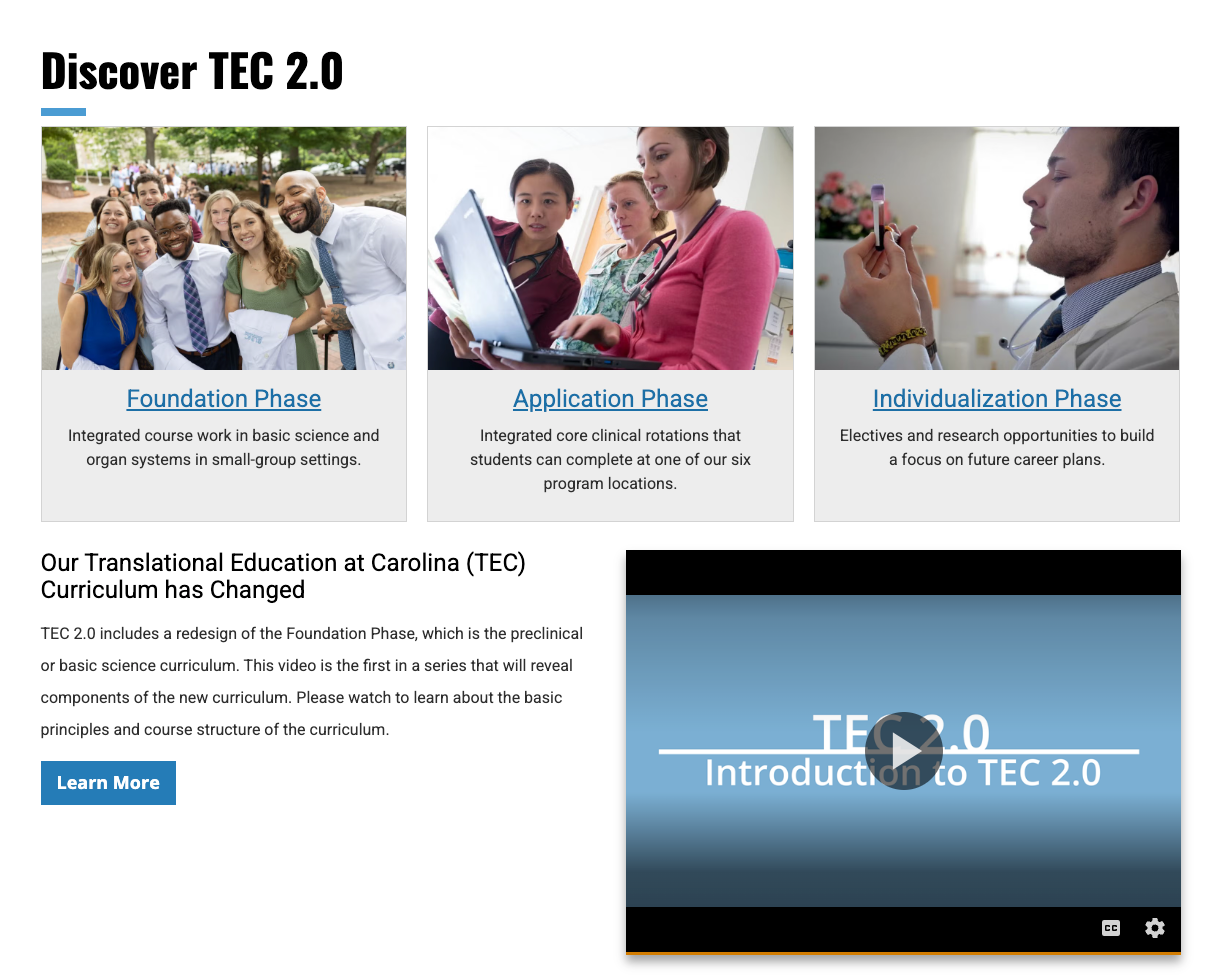
Because the image functions as a link, the alt text should describe the destination — that’s what screen reader users need to decide whether to follow it. The photo’s visual content becomes secondary to the link’s purpose.
Appropriate alt text in this context could be:
- “Learn about the Foundation Phase curriculum.”
- “Foundation Phase — UNC School of Medicine curriculum overview.”
When Images Don’t Need Alt Text
Almost all images on a website require alt text because they convey information, context, or meaning that users need to understand.
An exception is for purely decorative images. For example, when it adds visual interest but doesn’t communicate any information or have a functional purpose. In those cases, leave the Alt Text field blank.
Examples of decorative images include background images, ornamental borders, and custom bullet icons.
Caption vs. Alt Text
If your image includes a caption, it may not need alt text – as long as the caption fully conveys the image’s purpose. If the caption is too brief or missing key information, that information should be added to the alt text.
Attribution details like image source, photographer credit, or copyright belong in the caption, not the alt text.
Images With Text
Avoid using images that contain text whenever possible. Text inside an image is not readable by screen readers or search engines, cannot be translated, and often becomes blurry or distorted when resized on different devices. Whenever possible, use real text on the page instead of text in an image.
If you must use an image that contains text:
- If it’s a short amount of text, include the full text in the alt attribute.
- If the image contains a large amount of text, provide that text in the page content area near the image. The alt text should note that the full text can be found in the content of the page near the image.
Examples

Alt text: Questions? Email TEACCH.

Alt text: Join our training news email list.
Complex Images
Some images, such as charts, graphs, or posters, contain too much information to describe fully in alt text. In these cases, the full text or a summary must be provided within the page content, located immediately below or near the image.
- The image’s alt text should give a brief overview of what the image represents and tell users where to find the summary.
- The summary should describe the key points, trends, or takeaways from the visual, not every single data point.
Example Alt Text
- Example 1 – Departmental Organizational Chart
- Alt text: Department of Psychiatry organizational chart. Full leadership structure and division listings appear in the section below.
- Summary: The Department of Psychiatry is led by Dr. Jane Smith, Chair. Three Associate Chairs—Dr. Aaron Patel (Clinical Services), Dr. Maria Gomez (Research), and Dr. Kevin Liu (Education)—oversee the department’s main divisions. Each division, including Adult Psychiatry, Child and Adolescent Psychiatry, and Behavioral Medicine, reports to the corresponding Associate Chair.
- Example 2 – Research Graph
- Alt text: Line graph showing decline in average blood glucose levels after 12-week nutrition program. Detailed results provided below.
- Summary: The 12-week intervention reduced average blood glucose levels from 160 mg/dL at baseline to 120 mg/dL by week 12. The most significant drop occurred between weeks 4 and 8, coinciding with the introduction of weekly dietitian consultations.
- Example 3 – Infographic
- Alt text: Infographic showing infection-rate reduction and prevention measures at UNC Hospitals. Summary provided in the paragraph below.
- Summary: Between 2023 and 2025, UNC Hospitals reduced hospital-acquired infections by 40%. Key prevention measures included enhanced hand hygiene training, improved sterilization procedures, and expanded staff education programs.
Resources and Other Examples
- Arizona State University provides a detailed Accessible Complex Image Guide.
- Harvard’s Data Visualizations, Charts, and Graphs page explains how to ensure data visualizations are accessible to everyone by being mindful of color, labels, descriptions, and design.
- PennState demonstrates how to describe Flowcharts & Concept Maps.
- See how University Libraries displays both a graphical organization chart as well as a text version.
- UNC Office of the Chancellor opted for a text outline for their org. chart.
- The University of North Georgia provides both a text outline of their organizational structure as well as a graphical representation in a pdf (link at top of page).
- W3C’s Guide on Complex Images
Using AI to Generate Alt Text
AI tools can help generate alt text quickly, but they should be used as a starting point, not the final result. Human review is still necessary to ensure the alt text is accurate, meaningful, and appropriate for the page context.
When prompting AI to generate alt text, include:
- The context or purpose of the image on the page
- A 150-character limit
- The tone and topic of the surrounding content
- Whether the image links to something and what it links to
Example Prompts
- This image is on the MD program website and is a clickable link to a page about the Foundation Phase curriculum at UNC School of Medicine. Write alt text in 150 characters or less.
- Write alt text for this image in 150 characters or less. The person pictured is Dr. Jane Smith, UNC faculty, and the image appears alongside her biography on a faculty page.
- Generate alt text in 150 characters or less for this photo of Roper Hall used on a curriculum page to represent where medical education takes place.
Image Search Engine Optimization
While accessibility is the primary purpose of alt text, it also provides valuable SEO benefits. Search engines rely on alt text to understand what an image represents and how it relates to the surrounding content. Well-written alt text helps search engines:
- Better understand what your page is about
- Correctly index your images
- Improve your chances of appearing in image search results
Google places strong importance on descriptive alt text. It uses both the alt text and text surrounding the image to determine how relevant an image is to a user’s search.
Don’t use excessive or irrelevant keywords in alt text for the purpose of improving SEO. This will hurt both accessibility and SEO ranking. Instead, write natural, meaningful alt text that accurately describes the image and its purpose. This will benefit users and search engines with improved SEO being a welcome side effect.
Learn more about accessibility and SEO.
Training Videos
Improving Image Accessibility with Alt Text
Learn what alt text is and when to use or omit it.
4 min. 20 sec.
Writing Effective and Accessible Alt Text
Learn how to write alt text for more complex images.
4 min. 12 sec.
Resources
- Alt-texts: The Ultimate Guide – learn from a vision impaired web developer the best practices for alt text.
- WebAIM’s Tips for Writing Alt Text – Guidance and tips on how to write effective alternative text.
- WebAIM’s Tutorial on Creating Accessible Images
- W3C Image Concepts – documentation on how to provide appropriate text alternatives for images.