News Posts
News Posts are used to publish time-based content such as announcements, stories, and updates. Unlike Pages, which are permanent and structural, News Posts are meant to be published, read, and eventually archived. They do not appear in your site’s navigation and are instead accessed through news listings and feeds.
When to Use News Posts
Use News Posts for content such as:
- Department announcements
- Research highlights
- Faculty and student achievements
- Awards and recognitions
- Program updates
- Media coverage
Create a News Post
To create a new post:
- In the Dashboard, go to Posts → Add New.
- Add a Title.
- The title should clearly describe the content.
- Keep it concise and descriptive so users can quickly understand what the post is about.
- Add your content in the editor.
- Follow accessibility and formatting best practices.
- Use headings to organize content and add links and images as needed.
- Assign a category (if needed)
- Categories group related posts and allow you to filter and display specific subsets of content.
- Add a Featured Image (optional).
- Click Publish.
Images
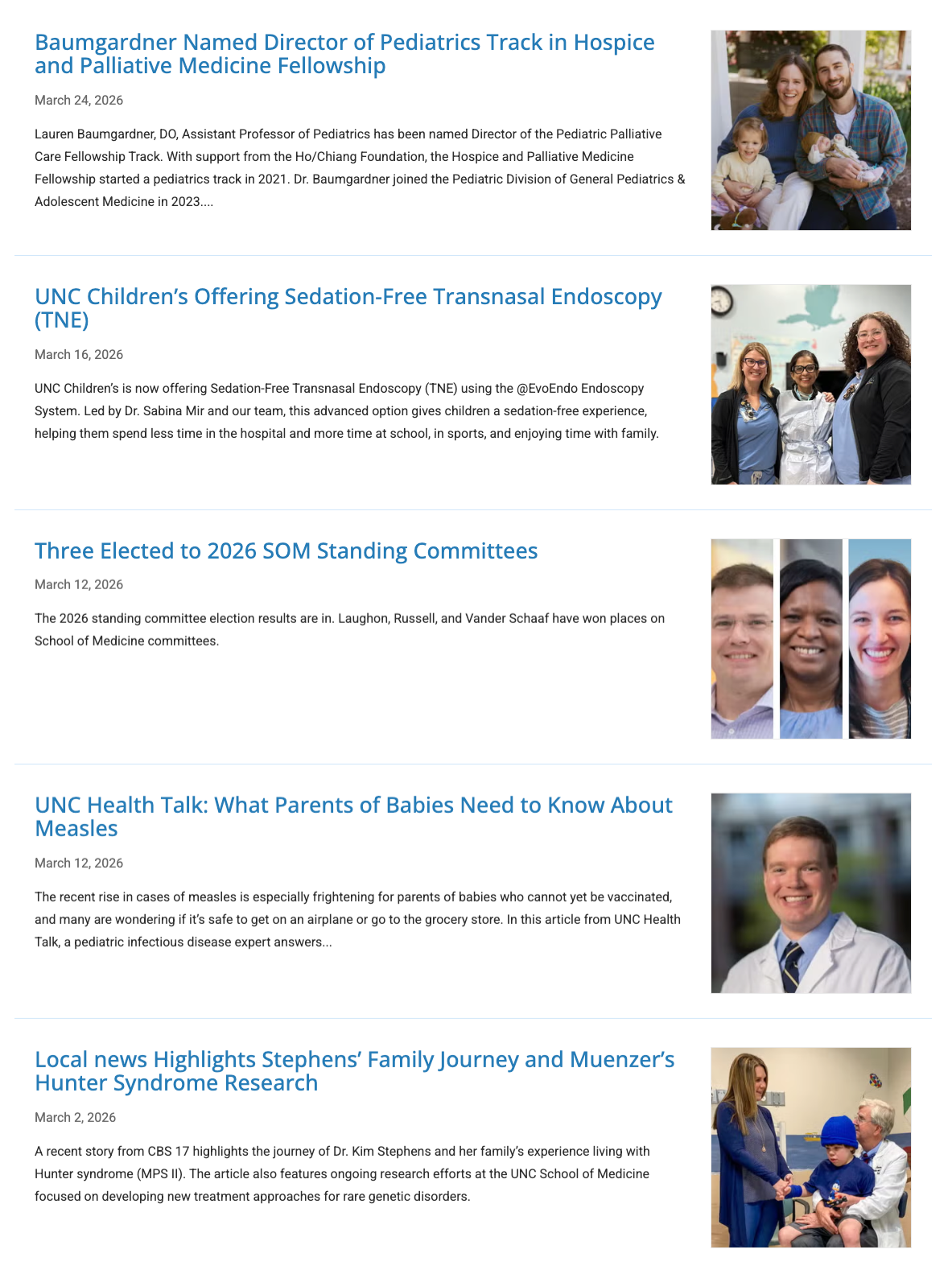
The Featured Image is the image that appears in news listing (such as shortcode displays or homepage feeds) that include images.
- It does not display within the body content of the news post.
- If you want the image to appear on the news page, add it to the body content in addition to setting it as the Featured Image. Most SOM sites use the same image in both places.
Additional images can also be added within the body content as needed.
As with all images on SOM websites, remember to include meaningful alt text so the image is accessible to screen reader users.
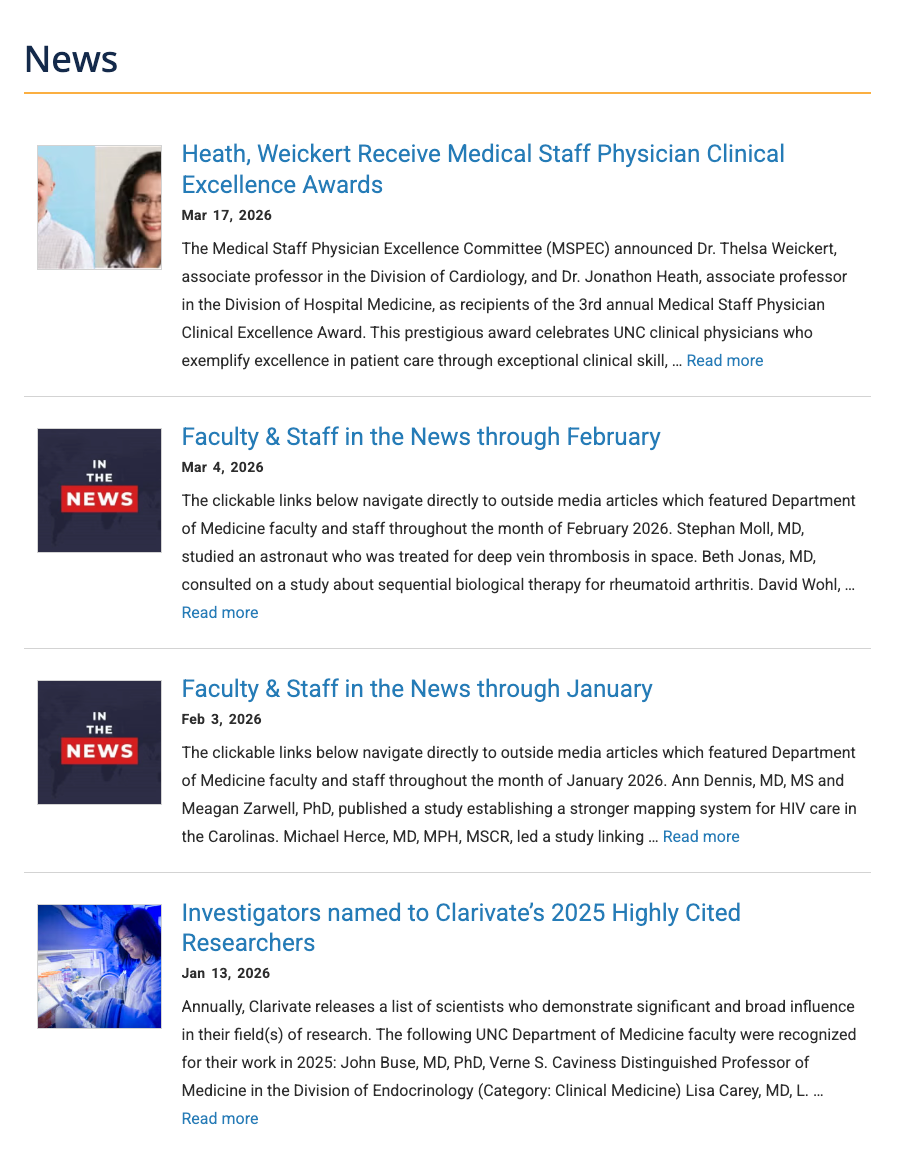
Cardiology uses a generic “In the News” image when a post does not have a featured image, so that all posts display an image in news listings – https://www.med.unc.edu/medicine/cardiology/news/
Avoiding Blank Spaces in News Listings
In a listing that display a mix of news posts both with and without images, the layout may look uneven. This is because posts without a Featured Image will display a blank space. Some SOM sites address this by using a generic placeholder image when they don’t have an image for a post.

The Excerpt
The excerpt is a short summary of the post.
- It helps users quickly understand what the post is about and should be written in a way that encourages users to click through to read more.
- The excerpt does not display on the post itself. Instead, it appears as the post description in searches and news listings.
- If no excerpt is provided, the beginning of the post’s body content will display instead.


Finding and Editing Existing Posts
In the Dashboard, click Posts to view a list of all news posts on a site.
If you wish to edit a post, locate it in the list and click the post title to open it in the editor.
You can also edit content directly from the front end of your site. View our How to Edit Content documentation for a video showing both front-end and dashboard editing.
Using Categories to Filter News
News Posts can be filtered and displayed in different areas of your site using categories. This allows you to show specific types of content, such as research or faculty news, in targeted sections. Learn more in our Filter News and Events documentation.