Display News Posts
News Posts do not display anywhere on your site by default. In order for visitors to see them, they must be added to a page using one of the display options below.
All news displays show posts in reverse chronological order (newest first).
News Archive Page
A News archive page provides a simple way to display all news posts on your site.
- Automatically displays all published news posts
- Uses the URL: your-site-url/news
- Displays posts in reverse chronological order
- Cannot be filtered by category
This page has already been created on many SOM sites. If your site does not have one, you can submit a request to the Web Team to have it added.
Cells Plugin
The Cells plugin provides the most flexible way to display news posts.
Using a News Syndication Cell, you can control how and where news appears on your site while taking advantage of built-in layouts and styling.
This option allows you to display:
- Posts from your site
- Posts from other SOM websites
- A combination of posts from multiple SOM sites
- Posts filtered by category
Cells are recommended because they:
- Provide consistent, pre-styled layouts
- Are responsive by default
- Allow greater control over design and placement
Theme Shortcode
The SOM theme includes shortcode for displaying news posts. There are 3 options that display published posts in different layouts.
To use them:
- Click the Shortcodes button in the editor.
- Select Recent Blog Posts.
- Choose from one of the three layout options.

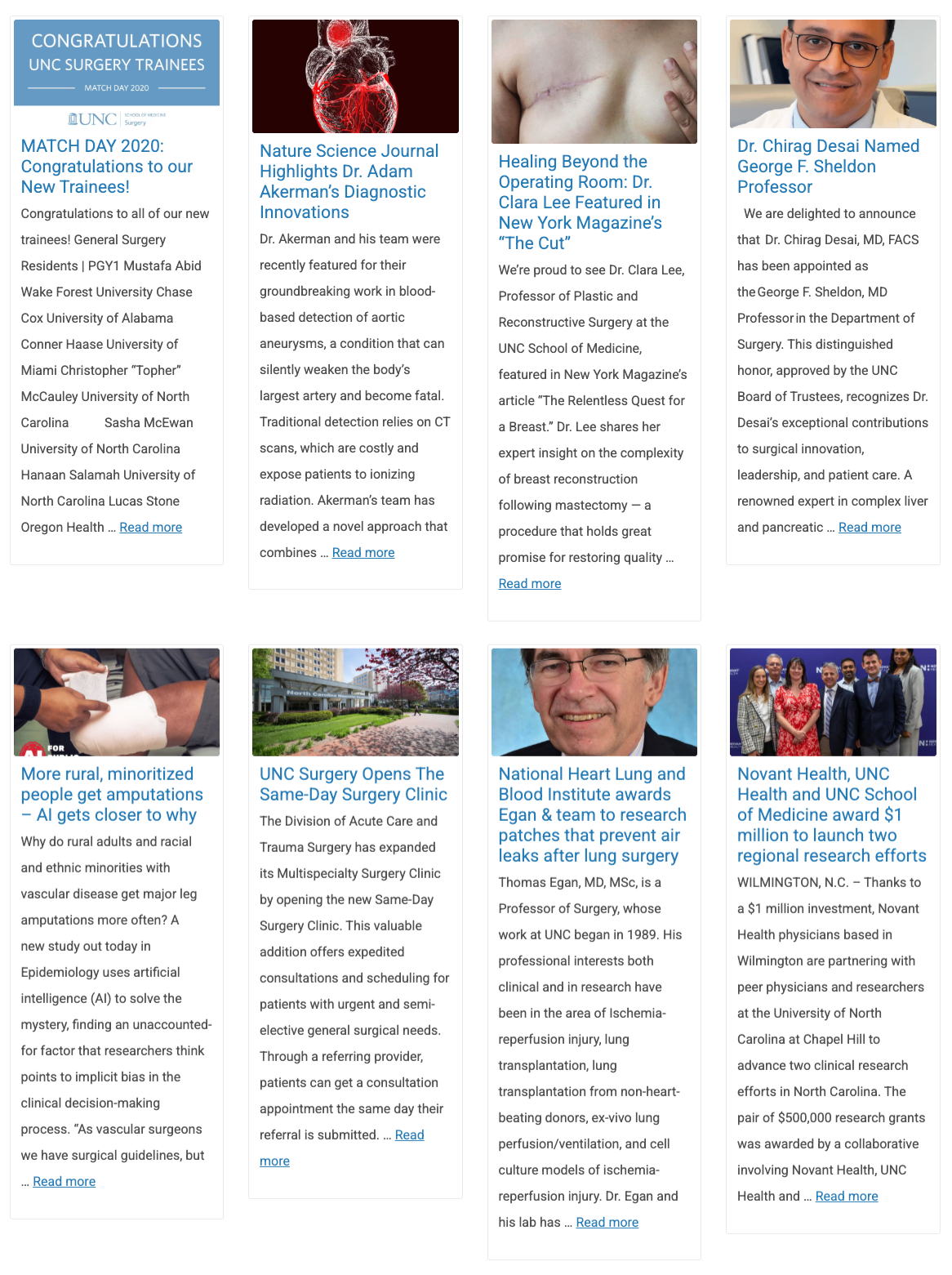
Recent Posts Thumbnails
This option inserts the following shortcode:
[heels_posts posts="4" category="" tags="" htag="h4"]
This displays posts in a horizontal, card-style layout with images.
- The number of posts shown is controlled by posts=”4″
- Posts will wrap to additional rows as needed based on available space
Options
- posts – modify this setting to control how many posts are displayed (posts=”8″)
- category – Add a category slug to filter results (example: category=”research”)
- htag – Sets the heading level for post titles
Recent Posts List
This option inserts the following shortcode:
[heels_list_posts posts="4" category="" tags="" htag="h4"]
This displays posts in a vertical list with images.
Options
- posts – modify this setting to control how many posts are displayed (posts=”8″)
- category – Add a category slug to filter results (example: category=”research”)
- htag – Sets the heading level for post titles

Isotope Posts
This option inserts the following shortcode:
[iso_posts posts="20" category="" tags="" htag="h4"]
This displays posts in a (Pinterest-style) grid layout with images.
Options
- posts – modify this setting to control how many posts are displayed (posts=”8″)
- category – Add a category slug to filter results (example: category=”research”)
- htag – Sets the heading level for post titles

Filtering For Categories and Tags
Your site should already have categories as well as posts assigned to to some of those categories. Filtering is the next step if you wish to control which posts appear in a display. See our Filter News and Events documentation if you don’t have existing categories.
The theme shortcode options, mentioned above, need the slug of the category that you wish to filter for. A slug is the URL-friendly version of a category.
For Example:
- Category Name: Research News
- Slug: research-news
You can find slugs under: Posts → Categories, in the Slug column.

Copy the slug of the category you wish to filter for and paste it into the shortcode.
For example:
[heels_list_posts posts="4" category="research-news" tags="" htag="h4"]
Heading Level
The htag setting (htag=”4″) in the theme shortcode options listed above, controls the heading level used for all post titles in the display.
The default (htag=”4″) sets all titles to a Heading 4. This may need to be changed depending on content above the news display. Using proper heading structure improves accessibility, SEO and page readability. See our Headings documentation for more detailed information.
Headings should follow a logical structure:
- Always use headings in descending order (H2 → H3 → H4)
- Do not skip heading levels
How To Determine the Heading Level Needed
Is there a heading above the news display?
- If no → use a Heading 2 (htag=”h2″)
- If yes → use the next level down
Display Posts with Modular Cards
The Modular Cards feature is being phased out in favor of the Cells Plugin, which includes the Card layout (available under Syndication) along with additional design options. It also offers a more user-friendly experience. If your site currently uses Modular Cards, consider transitioning to the Cells Plugin for enhanced functionality and long-term support.