Filter News & Events
Covered In This Tutorial
- What Categories and Tags Are
- Workflow
- Plan Categories and Best Practices
- When to Use Subcategories (Parent / Child Categories)
- Creating Categories
- Assign Categories to Content
- View All Posts or Events in a Category
Categories and tags help structure News Posts and Events by grouping related content. They allow you to filter and display specific subsets of posts or events.
For example, if your site publishes many news stories, you could use a Research category to display only research-related posts within the Research section of your site.
While WordPress allows for complex filtering and taxonomy systems, most School of Medicine websites only need simple categorization.
This documentation focuses on the basic use of categories, which is typically sufficient for organizing content on most SOM sites.
Sites that need advanced filtering, complex taxonomy structures, or custom logic can contact the Web Team for a free consultation to discuss the best approach.
What Categories and Tags Are
Both categories and tags group content, but they function differently.
Categories
Categories are hierarchical, meaning they can have parent–child relationships. This allows you to group related topics under broader categories.
Because categories support hierarchy, they are typically the most useful and easiest way to organize news posts and events.
Below are common examples of categories used on School of Medicine websites.
News Categories
- Research
- Education
- Patient Care
- Awards & Honors
- Faculty News
- Student News
- Community Outreach
- Alumni
Event Categories
- Grand Rounds
- Seminar
- Lecture
- Training
- Conference
Sites will use different categories depending on its audience and mission.
Tags
Tags are non-hierarchical, meaning they exist in a flat structure.
Many SOM sites do not need tags, and using too many can make content harder to manage.
For most sites, categories alone provide enough organization.
Workflow
Using categories to organize and display content generally follows this process:
- Create a Category – Define the category you want to use to group related content (for example: Research, Education, or Faculty News).
- Create News Posts or Events as you normally would.
- Assign a Category – Select the appropriate category when creating or editing the news post or event.
- Display Filtered Content – There are a number of ways to display news and events on a page. By default, these displays show all news or events on a site, but most options allow you to filter the display by category to show only a specific subset. View our documentation for directions:
- How to Display News Posts
- How to Display Events
Once the category and display are configured, the process becomes very simple. New posts or events only need to be assigned the appropriate category in order for them to automatically appear in the filtered display.
Plan Categories and Best Practices
Taking a few minutes to plan your categories before publishing large amounts of content can save significant time later.
If categories are created randomly as posts are added, sites often end up with too many categories, duplicate topics, or categories that contain only one or two posts. A well-planned category structure keeps content organized and easier for visitors to browse.
Start by identifying the major topics your content will fall under. These will typically become your primary categories. For example: Research, Education, Grand Rounds, etc.
Once your main categories are defined, reuse them consistently when publishing new content.
Best Practices
A small, well-organized set of categories is easier for both site editors to manage and visitors to navigate.
- Keep categories simple and meaningful
- Use broad topics rather than overly specific ones
- Avoid creating too many categories
- Reuse existing categories whenever possible
- Use hierarchy (parent/child categories) to group related topics when appropriate
- Let post titles and summaries describe the specific details
When to Use Subcategories (Parent / Child Categories)
Subcategories can be helpful when a site publishes large amounts of content within a major topic. For example, a site that publishes many research stories may want to group them further by research type. For example:
Research
- Clinical Trials
- Basic Science
- Translational Research
In this example, Research is the parent category and the others are subcategories.
However, many sites do not need subcategories. If your site publishes only a small number of posts, using a simple list of top-level categories is usually easier to manage.
Best Practices
- Only create subcategories when you have many posts within a single topic
- Avoid creating deeply nested category structures
- Keep your category hierarchy simple and logical
Creating Categories
Categories can be created while editing a post/event or from the Categories management screen.
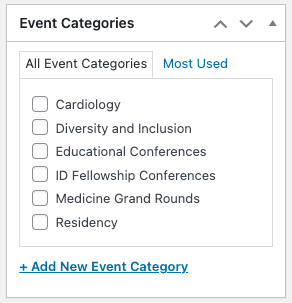
Method 1 — While Editing a Post or Event
- Edit or create a post/event.
- Locate the Categories panel.
- Click Add New Category.
- Enter the category name.
- (Optional) Choose a Parent Category if you want to create a hierarchy.
- Click Add New Category.

Method 2 — From the Categories Screen
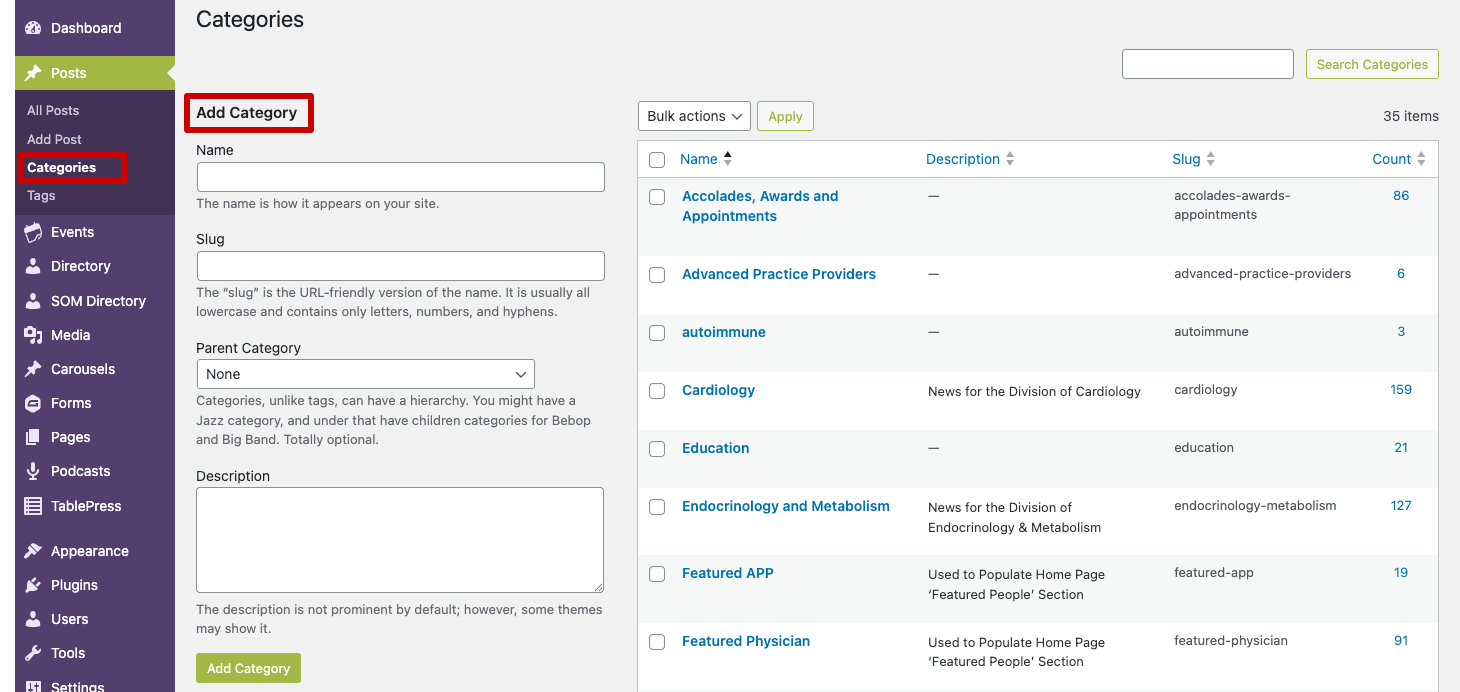
- In the WordPress Dashboard, select either:
- Posts → Categories
- Events → Event Categories
- Under Add Category, enter the category name.
- Choose a Parent Category if needed.
- Click Add New Category.
Assign Categories to Content
- Create or edit a news post or event.
- Locate the Categories panel.
- Check the box next to the appropriate category.
- Update or publish the post.
A post can belong to multiple categories, but it’s best to keep assignments focused and intentional.
View All Posts or Events in a Category
From the Dashboard
- Go to Posts → Categories or Events → Event Categories.
- Locate the category.
- Click the number in the Count column.
This displays all posts assigned to that category.

On the Website
Each category automatically generates a category archive page that displays all posts assigned to that category.
The URL for the archive page follows this format: http://site-url/news/category/category-slug
For example, the Department of Medicine site has a category named Cardiology. The archive page displaying all posts assigned to that category can be found at: https://www.med.unc.edu/medicine/news/category/cardiology
The category slug is the URL-friendly version of the category name, usually written in lowercase with hyphens instead of spaces and can be found on the Categories management screen.