Headings
HTML headings create the structure of your web page, helping both visitors and search engines understand how your content is organized. Headings are essential for accessibility, SEO (search engine optimization), and overall user experience. They guide all users — not just those using screen readers — by showing how content relates from section to section.
Covered In This Tutorial
- Why Headings Matter
- Heading Hierarchy
- Best Practices
- SOM Heading Styles
- How to Create a Heading
- Common Issues When Applying Headings
- Undoing a Heading Style
- Summary
- Accessibility Videos
- Example
Why Headings Matter
All Site Visitors
- Most users skim before reading. Clear, well-structured headings make content easier to scan and understand.
- Subheadings guide visitors deeper into your content, improving engagement and reducing bounce rates.
Accessibility
- Headings allow screen reader users to skip directly to specific sections of content, making it easier to navigate, scan and understand page content.
SEO (Search Engine Optimization)
- Search engines use headings to interpret your content hierarchy and identify key topics.
- Descriptive, keyword-relevant headings help pages rank better — but avoid keyword stuffing, which hurts readability and trust.
Heading Hierarchy
Headings must follow a logical order to meet accessibility standards. There are six levels of headings: H1 through H6.
Page Title 1 (H1)
- The page title is automatically set as an H1 in the School of Medicine web system.
- Each page should have only one H1 and it should represent the main topic.
- Keep it clear, descriptive, and unique.
Main Content Area (H2 – H6)
- Use H2 through H6 headings within the main content area to organize sections and sub-sections of content.
- H2 marks major sections under the H1. H3 through H6 are used for sub-sections.
- Headings should be used in descending order. For example, the first header used in the body content area should be an H2. If you wish to follow the H2 with a subheading, use an H3. If you wish to follow the H3 with a subheading, use an H4 and so on.
- Do not skip heading levels (e.g., from H2 to H4), as this can confuse both users and assistive technologies.
Best Practices
Use Headings For Structure, Not Style
- Use headings to organize content into meaningful sections, not to make text large or bold.
- Headings make pages easier to scan and read. Visitors rely on them to quickly identify where new topics begin and locate information of interest.
- Screen readers and search engines depend on proper heading tags (<h2>, <h3>, etc.) to understand the structure of your page, not on visual styling such as bold, italics, or underlines.
- A common accessibility mistake is bolding text to make it look like a heading instead of applying the actual heading level through the editor.
- Avoid manually changing heading fonts, colors, or sizes. These styles are already built into the School of Medicine theme for consistency and accessibility.
Be Descriptive and Clear
- Headings should accurately reflect the content that follows.
- Ensure each heading is unique and relevant to its section.
Break Up Long Content
- Use headings to divide text into short, readable sections. This improves comprehension and helps visitors find information quickly.
SOM Heading Styles
In the School of Medicine web system, all heading styles are pre-configured in the theme to meet accessibility and branding standards including font, size, weight, and color contrast.
Editors should not manually style headings (for example, by changing the font, color, or size). Simply apply the appropriate heading level (Heading 2, Heading 3, etc.) when formatting your content. The theme will automatically apply the correct visual style for each level.
Manually styling headings can cause inconsistent formatting, break accessibility compliance, and disrupt the unified look of School of Medicine websites.
How to Create a Heading
To style content as a heading, use the built-in formatting tools in the editor.
- Place your cursor in the text you want to style as a header.
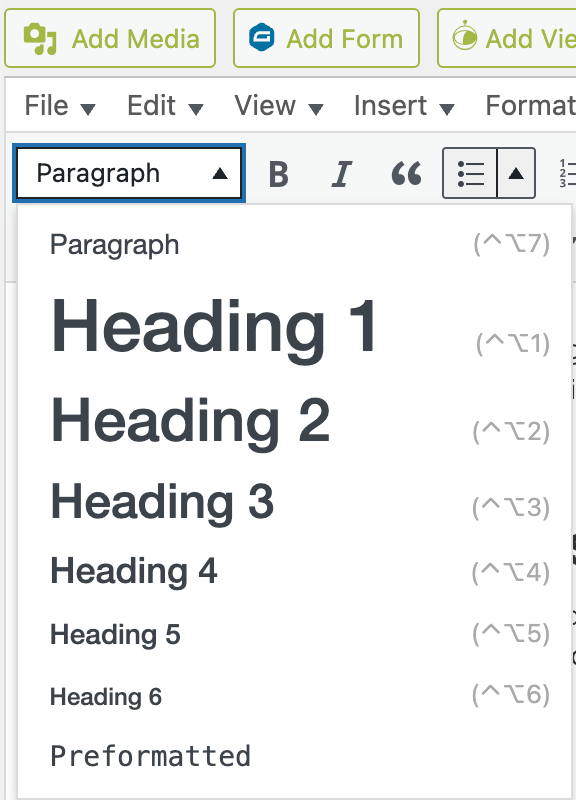
- In the toolbar, locate the formatting drop-down menu that typically shows “Paragraph” by default.
- Click the dropdown and select the appropriate heading level:
- Heading 2 is the first heading used in the main content area.
- Use Heading 3-6 for subsections as needed.
- Do not use Heading 1 in the body content area. The page/post title already serves as the H1.
Common Issues When Applying Headings
Why Headings Sometimes Apply to Too Much Text
When you apply a heading style, it affects the entire paragraph block, not just the highlighted text. This can be confusing if the paragraph includes multiple lines that look separate but are still part of one block.
To avoid this issue, it’s important to understand the difference between a hard return and a soft return:
- Hard Return (hitting Enter on the keyboard): Creates a new paragraph.
- Soft Return (hitting Shift + Enter on the keyboard): Drops the cursor to the next line within the same paragraph.
- If a block of text contains soft returns, WordPress sees it as one continuous paragraph and will apply the heading to all the text in that block.
To place heading text in its own paragraph, press Enter before and after the text to separate it from other content.
Copying from Microsoft Word
- Be aware that text pated from Microsoft Word often includes multiple soft returns, which make content look like separate paragraphs, but structurally, it’s all part of the same paragraph.
Undoing a Heading Style
If text was accidentally styled as a heading, you can easily revert it back to normal paragraph text:
- Place your cursor inside the affected text.
- In the editor toolbar, open the Format drop-down menu (it may say “Heading 2,” “Heading 3,” etc.).
- Select Paragraph to return the text to standard body text.
Summary
Using proper headings improves:
- Accessibility – screen readers use them to navigate.
- SEO – search engines use them to understand your page.
- Readability – visitors use them to scan and find information.
Creating a logical heading structure takes minimal effort but has a major impact on accessibility, usability, and search visibility.
Accessibility Videos
Making Headings and Lists More Accessible
Learn how screen reader users navigate using headings and lists.
4 min. 38 sec.
Web Headings for Screen Readers
A blind presenter demonstrates real-world heading navigation.
1 min. 52 sec.
Example
